
Import AI-Generated HTML Pages to Figma
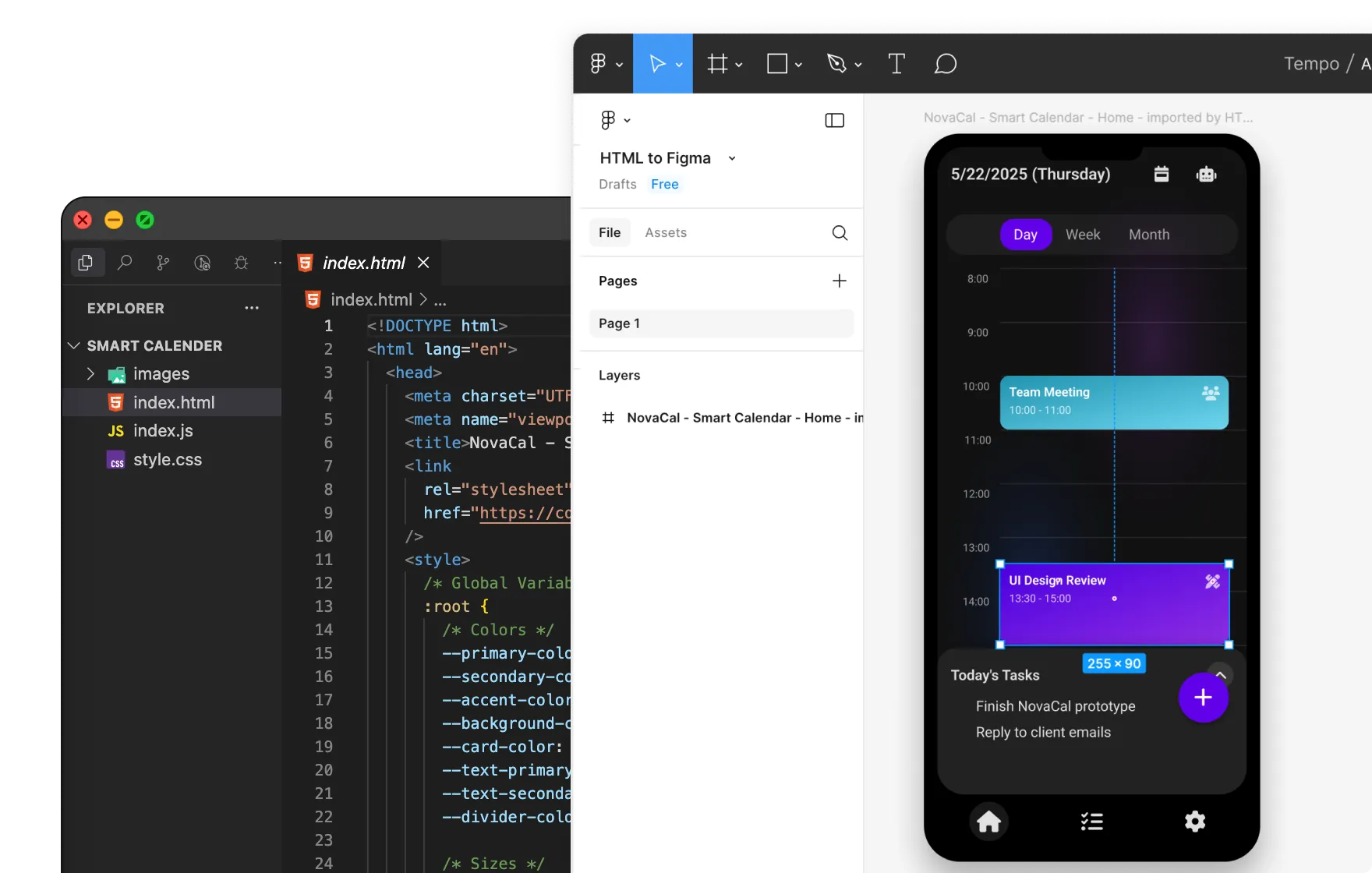
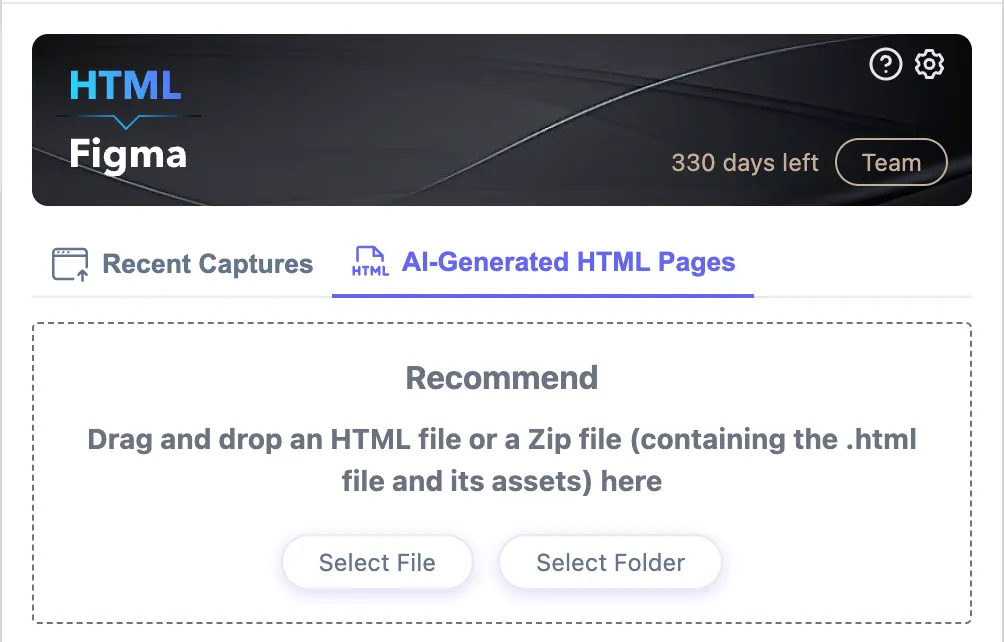
Here we’ll focus on importing an .html file directly. Open the Refore HTML to Figma plugin, click AI-Generated HTML Pages and follow the prompts, as shown below:
If there are .css, .js, images, or other files alongside the HTML file
What you see might look like this:
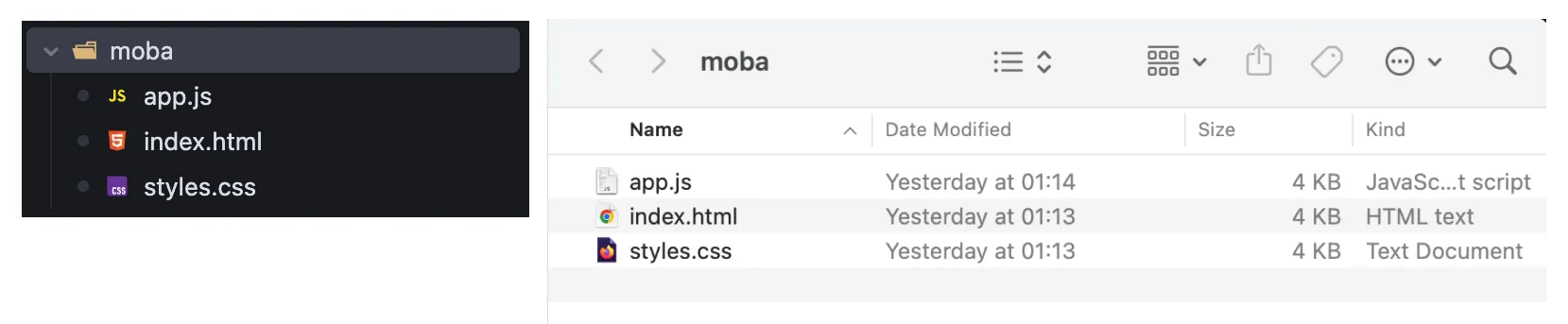
In this case, click the Select Folder button and choose the appropriate folder.
If the HTML page is a standalone .html file
What you see might look like this:
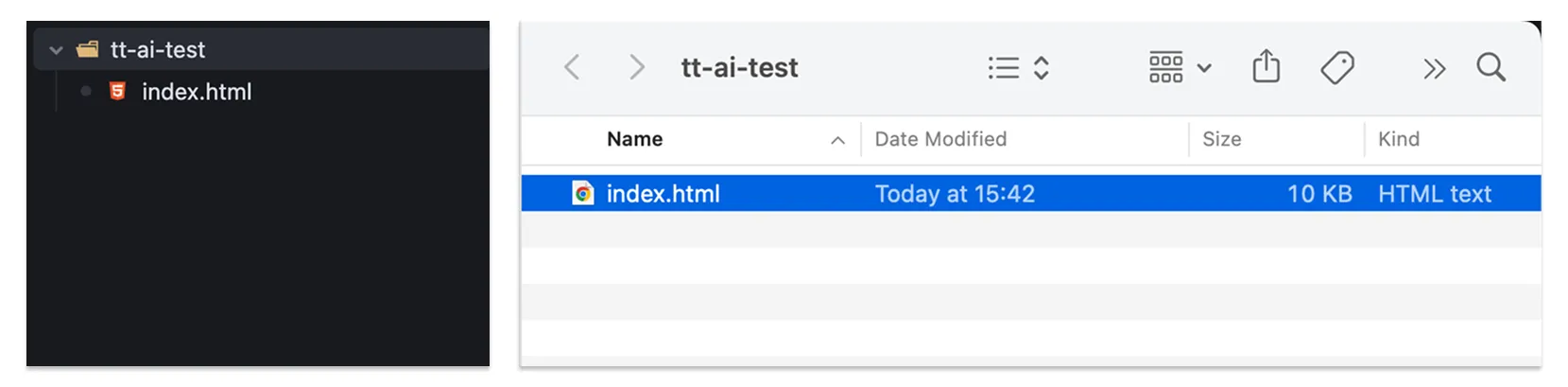
Select File button and choose the appropriate .html file. Or, as suggested in the previous interface, you can directly drag the HTML file into the plugin to import it.
Then, you’ll see a popup where you can choose the viewport width for the imported page and whether to use Interactive Import.
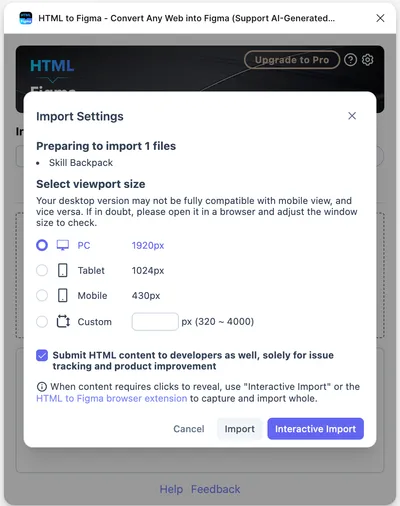
Interactive Import
Please use capture by Refore HTML to Figma browser extension or Interactive Import in the following 2 situations:
- When the page content you need to import requires clicking to view, such as popups
- When the page content you need to import requires mouse hover to view, such as menus, button hover styles
For specific usage, please see the video below:
Import all sub-pages in one click
An AI-generated page is rarely just one screen. Behind it sit sub-pages that only appear after a click — modals, dropdown or side menus, multi-tab content, and the pages it links to. Previously you had to open each of these in the preview and import them one by one.
Now, in the import flow, just click Import All. The AI automatically discovers every page and its sub-pages — modals, menus, tabs, and linked pages — opens and imports each one as a separate frame, and wires up the click prototype connections between them. Progress is shown the whole time, and you can cancel anytime.
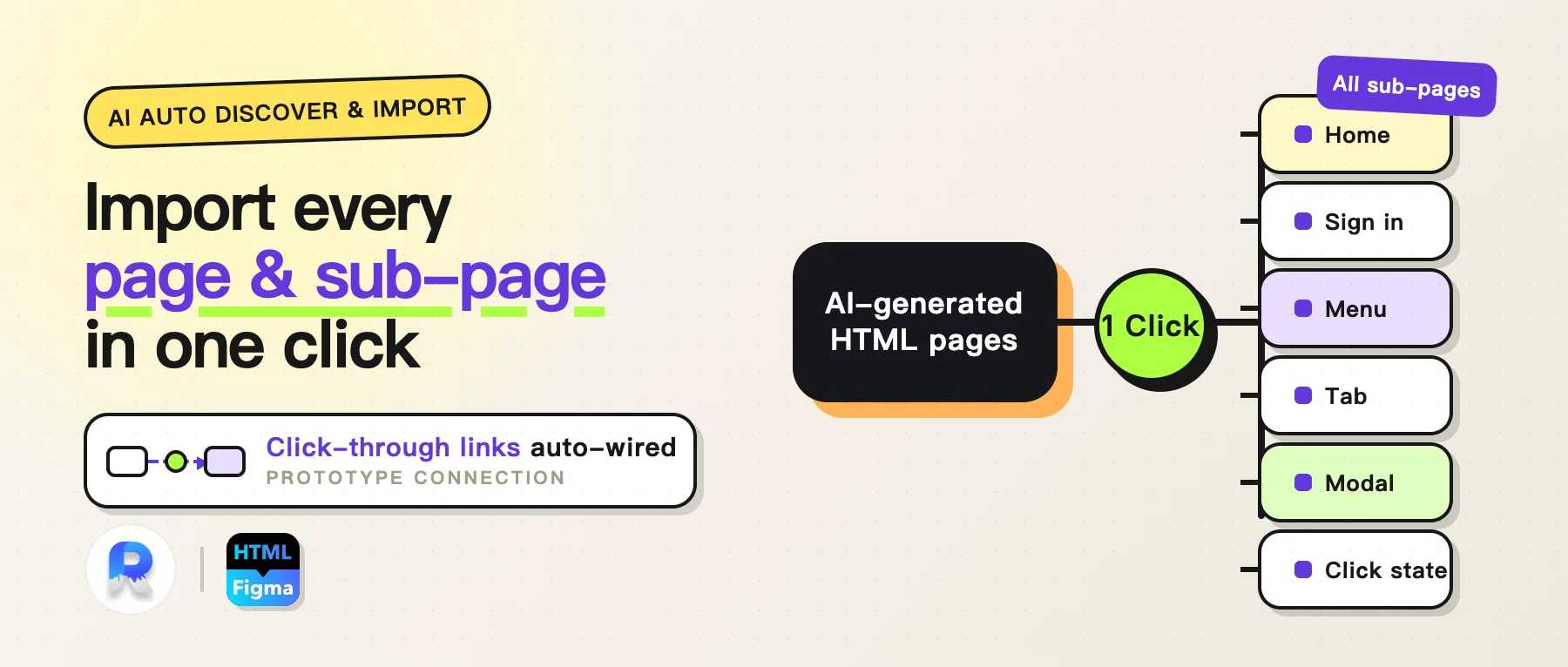
In the demo, two pages import in a single click into 8 frames (6 sub-states) with 4 click prototype connections — every sub-page becomes its own editable, clickable frame.
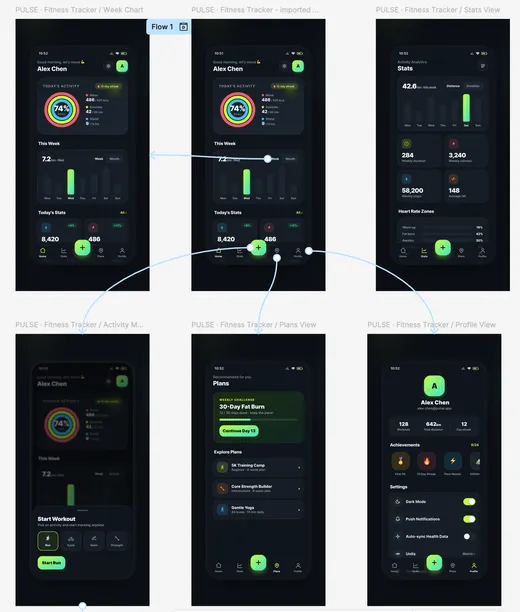
The blue lines are the auto-generated click prototype (Flow 1), so the imported frames are a working prototype — not just static screenshots.
Common Issues
Interactive Import stuck in “Page preparing” status
Open this HTML file in the same browser that’s running the Refore HTML to Figma plugin. If it doesn’t open properly, it means the page depends on resources that your current browser environment cannot request. Please check your network connection or try using a VPN.
If you still have issues, please talk to us